
A looper and a note source, in the patch rather than on the timeline. Wire its dotted output into any instrument - a hosted plugin, a synth organism, a MidiOut for hardware - and press play. Cord it into three at once and one riff drives all three, which is the thing it is actually for.
It has no track on the timeline, on purpose. An instrument carrying its own clips is a MIDI track in its own right, and that is what "+ MIDI Track" makes: one object with one cable. Two ways of putting notes on the song would be one too many, so the song has instruments and the patch has this.
Reach for a PianoRoll when you want a looper to jam riffs on. Its clips play through its cords wherever the transport is - a loop you patch, not a part you arrange.
Arranging clips
Open the Timeline in the bottom dock, where each PianoRoll appears as a track row. Drag on an empty lane to create a clip, drag a clip to move it, drag its edges to resize, Ctrl-drag to copy, and right-click for Split, Loop, Rename, Duplicate and Delete. The Pointer selects - drag it over empty lane to marquee several clips at once - and the Pencil creates, on empty lane - over a clip that is already there it leaves it alone and just selects it. Each track header carries M to mute it, S to solo it, and R to arm it. Ctrl+A selects every clip, and Ctrl+C, X, V and D copy, cut, paste and duplicate whatever is selected - one clip or twenty, keeping the shape it was in. A looping clip repeats from its start, drawn as ghost repeats; a one-shot plays once where it sits. Alt bypasses the bar snap. Double-click a clip to open it.
A clip shows the notes it holds, as pitches while there is room for them and as a density strip once there is not. Drag the bottom-right corner to lay the same material out lap after lap. The right-click menu's Notes submenu transposes the clip, quantises it to whatever the corner chip says the grid is, and pushes every velocity up or down. Transpose moves MIDI note numbers, so under a Tuning organism a step is a step of that scale.
Playing a track
Click a track on the Timeline and it lights up, and it is playable: whatever you play - the computer keyboard, a hardware one - sounds through the instrument that track already feeds. Nothing to wire, no MidiIn needed.
The keyboard follows the selection, so picking another track moves it there. Arm a track with R and it keeps the keyboard while you click elsewhere; arm several and they all play. That is the answer to "which one am I playing".
An organism's own on-screen keyboard is a different thing: clicking its keys with the mouse auditions that organism, whatever the timeline has selected.
Track mode
Double-click a clip - or a track's header - and the Timeline fills with this track's whole piano roll: every note of every clip, on the same ruler, the same zoom and the same playhead you were just looking at. Esc goes back, the Song crumb top-left does too, and Alt-Up / Alt-Down walks to the next track without going through the arrangement.
The clips are drawn once along the floor as a coloured ribbon with a seam at each start, so you can see where one ends without every clip becoming a box. A note lives in the clip its start sits in: drag its start into the next clip and it moves house, drag it where there is no clip and it springs back, and no note outlives its clip, so a tail crossing the end is cut there.
The wheel scrolls pitch here rather than rows, and reaches the whole keyboard; Alt and the wheel zooms it, the way Ctrl and the wheel zooms time. The keys down the left are playable - press one and the track sounds it, and a finger sliding down them glissandos.
The tools, the marquee, the arrows and the velocity keys are the same ones described below - one language, learned once. Ctrl+A takes every note on the track, and Ctrl+C, X, V and D copy, cut, paste and duplicate the selection, keeping the phrase's own shape wherever it lands.
Editing notes
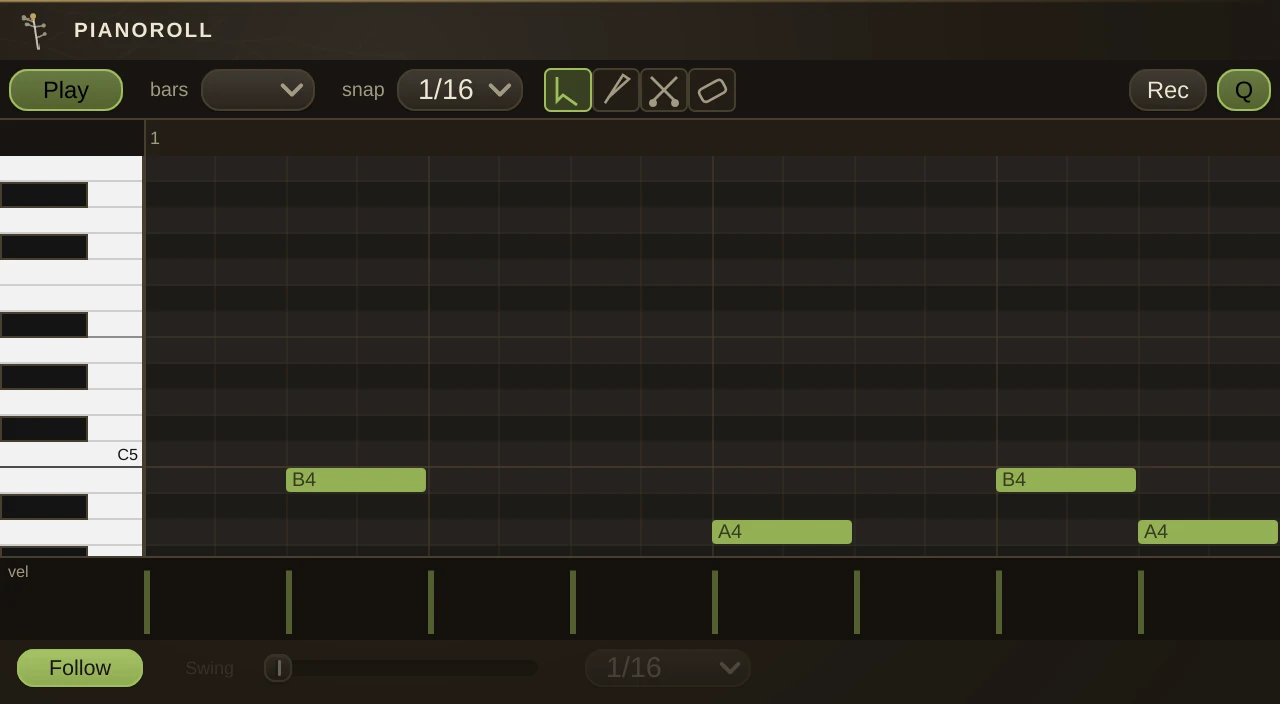
Four tools, on keys 1 to 4: Pointer selects, marquees and moves; Draw creates by dragging; Scissors splits a note; Eraser sweeps notes away. Drag a note's tail to resize it, Alt-drag vertically for velocity, right-click to delete. Ctrl+A, C, X and V select all, copy, cut and paste, and the clipboard works across PianoRolls; Ctrl+D duplicates the selection one span forward; Delete removes it. The bars and snap controls set the clip length and grid. Up and Down move the selection a semitone, Shift a whole octave; Left and Right move it a grid step; Ctrl with Up or Down pushes velocity.
The looper
The Loop button, on key R, is a one-button loop recorder in the spirit of a hardware looper. Tap it on an empty clip and play: the clock restarts at bar 1 and the take is open-ended. Tap again to close the loop, and its length becomes what you played rounded to the nearest whole bar, cycling immediately. From there each tap toggles Dub, where new notes layer on lap after lap, and Play. Right-click the button to clear it.
While the looper is armed everything you play echoes out the PianoRoll's own cords, so you hear the take through the instrument it feeds with no MidiIn cord needed. If you have also wired one to the same instrument, unwire it or the notes will double.
Takes
Record another lap over the same bars and the new clip lands on top of the old one. A lane plays one clip at a time, so what you hear is the top of the pile, and the earlier takes are still underneath. Unfold the row and each one gets a take lane showing the whole take with the parts you are hearing filled in. Click a take lane to bring that take to the top. Nothing is deleted, so the take you just replaced is one click away.
A looping clip is exempt: it is the thing you jam over, not a take competing for the same bars, so it neither covers nor is covered.
Recording
Press Rec to capture live MIDI - hardware, or the on-screen keyboard at the bottom of the editor - into the open clip, and Q to quantize what you caught to the snap grid. Rec starts the audio engine and the clock if they are not already running. In the Timeline, the R box arms the clip under the playhead, creating one if needed. A whole take is one undo step. Recording captures what you play whatever the organism's MIDI Receive mode says; an explicit per-channel mode narrows the take to that channel.
Parameters
| Bars | the clip length, in bars. |
| Channel | which MIDI channel the notes leave on. |
| Mute | silences the output without unwiring anything. |
| VelocityScale | multiplies every note's velocity on the way out. At 1 they play as drawn. |
Known limits
A looping clip and a placed clip sounding the same pitch at once share one held-note table, so their note-offs can cut each other. Relocating the transport mid-note can hang a note until the next stop or edit.