
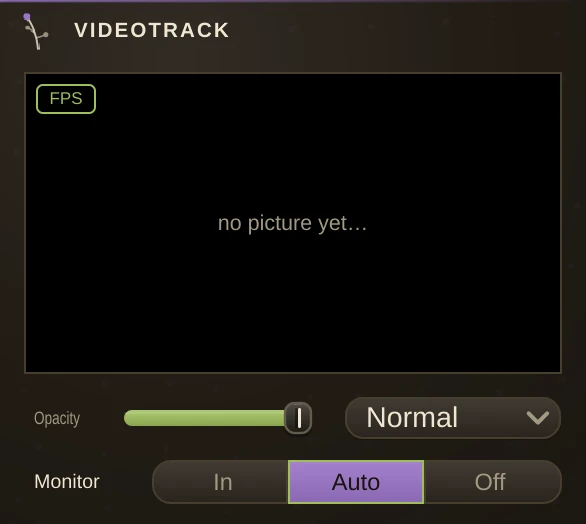
A video track on the timeline. Add one from the timeline's add-track menu, or drop a movie file onto the arrangement and a video track appears for it. Its clips cut, trim, move, duplicate, loop and fade like audio clips, with the same handles and the same menu, and the track's video outlet shows whatever sits under the playhead: cord it into a Video Out, a VideoFX or a Scene like any deck.
Playing to the clock
The picture follows the transport rather than running on its own. Stop and it holds the frame under the playhead; locate and it jumps there; loop the song and it loops with it. A clip's In point is the trim on its left edge, so slip and trim work exactly as on audio. Fades are opacity fades to black, Warp to Beats stretches the tape so it runs at the song's tempo against its Source Tempo, and Reverse plays it backwards.
The next clip is opened a moment before it is due and parked on its first frame, so a cut lands without a hitch. Every clip has its own decoder while it is near the playhead, and decoders rest once their clip is behind.
Fast tapes
Ordinary .mp4 and .mov files keep their frames in groups, so jumping to a frame means decoding the whole group first: fine while playing, sluggish while scrubbing or at a cut on a big file. A HAP .mov (the codec live-visual rigs use) is instant everywhere, because every frame stands alone. Encode the tapes you cut hard as HAP and the timeline stays snappy.
Thumbnails and pads
Each clip wears a strip of frames from its tape, one per second, read once in the background and kept for the session, so a cut shows what it cuts to. Drag a clip off the timeline onto a VideoPad pad and the pad takes the clip's tape with its In and Out set to the clip's edges; drop it on a VideoPlayer's file slot and the deck loads the tape. Drag a pad by its number badge onto the timeline and its In-to-Out range lands as a clip on a video track.
Recording
The track has an inlet. Cord a camera, an effect chain, a pad rack, a scene or another video track into it, arm the track with its record button and press record: whatever reaches the inlet is written as a compact movie in the recordings folder while the transport rolls, and the take lands on the timeline as a clip at the beat it started, cut and looped like any other. A take follows the transport, so a loop while recording lays down a lap per pass, the way an audio take does. Sound is not part of the picture: record it on an audio track armed beside this one and the two start and stop together.
Monitor decides what the outlet shows. In always shows the inlet, Off always shows the clips, and Auto shows the inlet while the track is armed or the transport is stopped and the clips while it rolls. The recording size is set in Settings, under Video.
Media Info
Right-click a clip and choose Media Info to read what the clip is made of: where it sits and how long it runs in beats and seconds, its in and out points on the tape, warp and source tempo, the file's path and size, and for the movie itself the codec, picture size, frame rate, frame count and how often a keyframe comes (every frame on a fast tape, one every so many frames on an ordinary one - the number that decides how a tape scrubs), plus any sound stream inside. Copy puts the text on the clipboard for a bug report.
Compositing
Opacity and Blend set how the track's picture sits in a Scene, the same knobs as on a deck. Two video tracks are two layers.